HelpApps and logins
Passwords
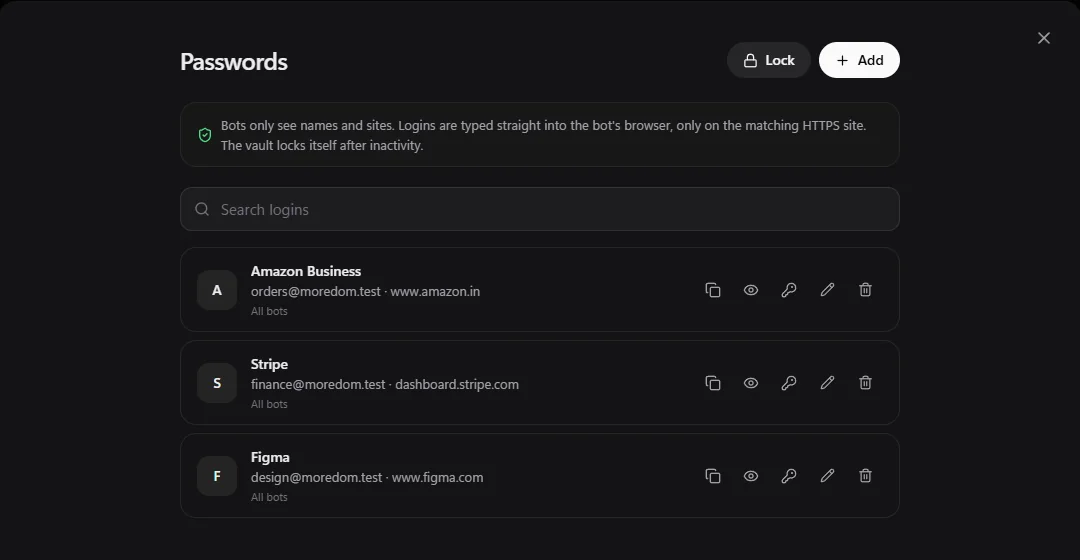
Passwords is a locked vault of logins your bots can use. When a bot needs to sign in, Henchkin types the login straight into the bot's browser. The AI never sees the password.
Set up the vault
- Open your account menu and choose Passwords.
- Choose a master password (at least 10 characters) to lock the vault.
Keep your master password safe
It can't be recovered. If you lose it, the saved logins can't be opened, and you'll need to add them again.
Add a login
- Choose Add.
- Fill in a Name, the Website, and the Username or email and Password (or choose Generate for a strong new one).
- If the site uses an authenticator app, add its Two-factor secret too, and the bot can enter those codes as well.
- Under Which bots may use this login, pick all bots or only some, and save.
How it keeps logins safe
- Bots only see names and sites. A login is typed only on its own HTTPS site (and its subdomains), so a look-alike page can't collect it.
- The vault locks itself after 30 minutes without use, or when you choose Lock.
- Every use is recorded in Settings → Activity.
- Each company has its own vault. See Companies.
Cards and payments
Henchkin's vault holds logins, not cards. For bots that pay for things, save the card in a connected 1Password vault. A bot always asks you to approve a payment, and the approval covers only that one payment on that one site.
Still stuck? Open Support from your account menu in the app, or email hello@henchkin.com. We usually reply within a day.