HelpAccount
Getting help
If something isn't working, tell us from inside the app. Here is how, plus quick fixes for the things people ask about most.
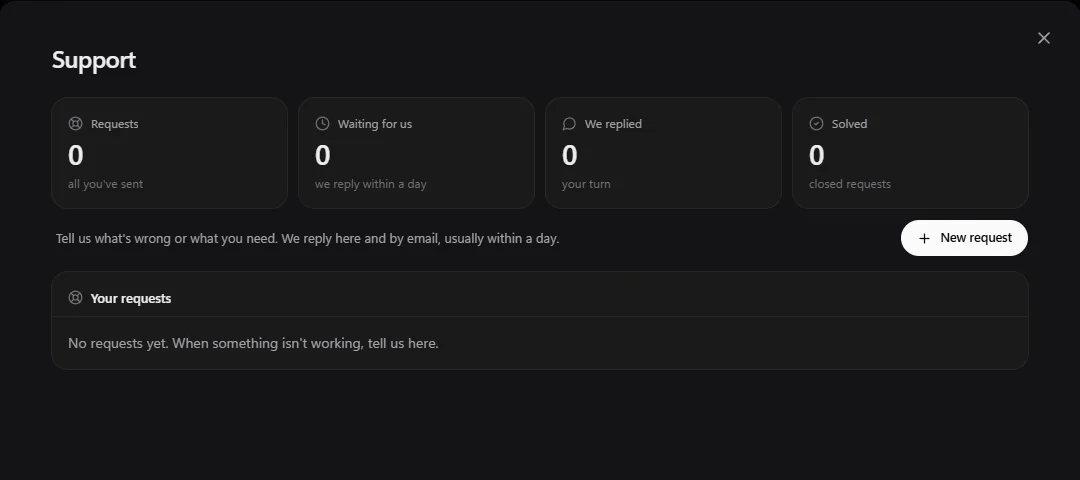
Contact support
- Open your account menu and choose Support.
- Choose New request, pick what it's about (a bug, technical help, billing, your account, a feature idea or something else), and describe what happened.
- We reply in the app and by email, usually within a day. Requests waiting for you show under We replied.
You can also email hello@henchkin.com. For a security problem, put "Security" in the subject.
A bot isn't replying or seems stuck
- Look for an amber Needs you bar at the top of its chat. It may be waiting for an answer, or for you to take over its screen.
- Check its AI connection in Settings → Models. See Connect your AI.
- Choose Stop, then ask it again in a new message.
A website blocks the bot
- Take control of the bot's screen and get past the check yourself, then choose Release.
- For sites that block cloud servers, turn on Browse from my computer.
The computer won't start
- The first start can take up to a minute. Give it a moment, then choose Wake it again.
- Check its disk and monthly internet use in your account menu → Computers. See limits.
- As a last resort, the computer's ⋯ menu has Reset, which puts it back to a clean machine. Download anything important from its Files panel first.
The sign-in code doesn't arrive
- Check your spam folder for an email from Henchkin, and wait a minute.
- Choose Send another code. Each code works for 10 minutes.
I deleted something by mistake
Open Settings → Recently deleted and choose Restore. Things wait there for 30 days. Files from a bot's computer are in that computer's Files panel, under Recently deleted.
Still stuck? Open Support from your account menu in the app, or email hello@henchkin.com. We usually reply within a day.