HelpYour bots
Create and set up bots
A bot is an AI helper with a name, a job, a memory and (usually) a computer. Make one for each kind of work you hand off.
Create a bot
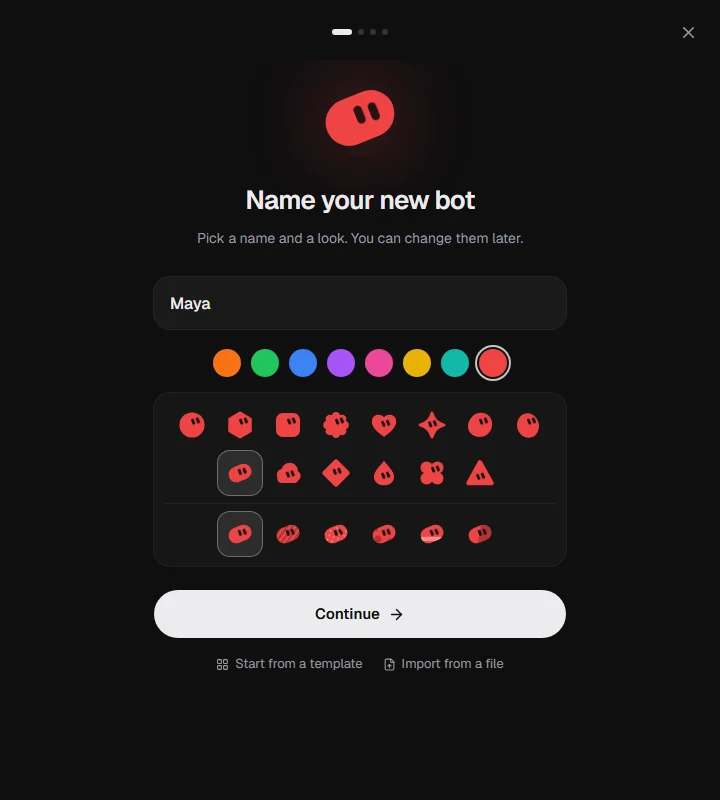
- Choose the + at the top left (next to search). A new bot is made in four short steps.
- Name and look. Name it, then pick a colour, shape and pattern. To skip ahead, choose Start from a template for a ready-made bot such as Executive Assistant, Researcher, Competitor Watch, Lead Prospector, Support Desk, Bug Triage, Shop Manager or Travel Planner, or Import from a file.
- AI model. Pick which connection it uses and which model. If you haven't connected one yet, you can do it right here, with a plan you already pay for or an API key. With two connections you can also turn on a Backup model.
- Computer. Choose Private, Shared or None (see below).
- Instructions. Talk them through on a call, where the bot speaks first and then writes up what you said for you to check, or write them yourself (see below). Then choose Save and start.
Write good instructions
Instructions tell the bot what to do and how to work, in your own words. It reads them every time it works, and you can change them whenever you like. Keep them short and specific:
- "You look after my inbox and calendar. Keep replies short and friendly. Never accept a meeting before 10 am."
- "You are my research assistant. Prefer primary sources and always link them."
When a new bot starts, it introduces itself and asks what it needs to know. Things it learns along the way go into its memory, so you don't have to put everything in the instructions.
Choose its computer
| Choice | What it means |
|---|---|
| Private | Its own computer. Its logins and files stay with this bot only. |
| Shared | A team computer shared with other bots. They share logins and files, but each works on its own screen. |
| None | Chat only, with no browser or terminal. Fine for writing and thinking jobs. |
On the Starter plan, bots share one team computer. See Bot computers for more.
The details panel
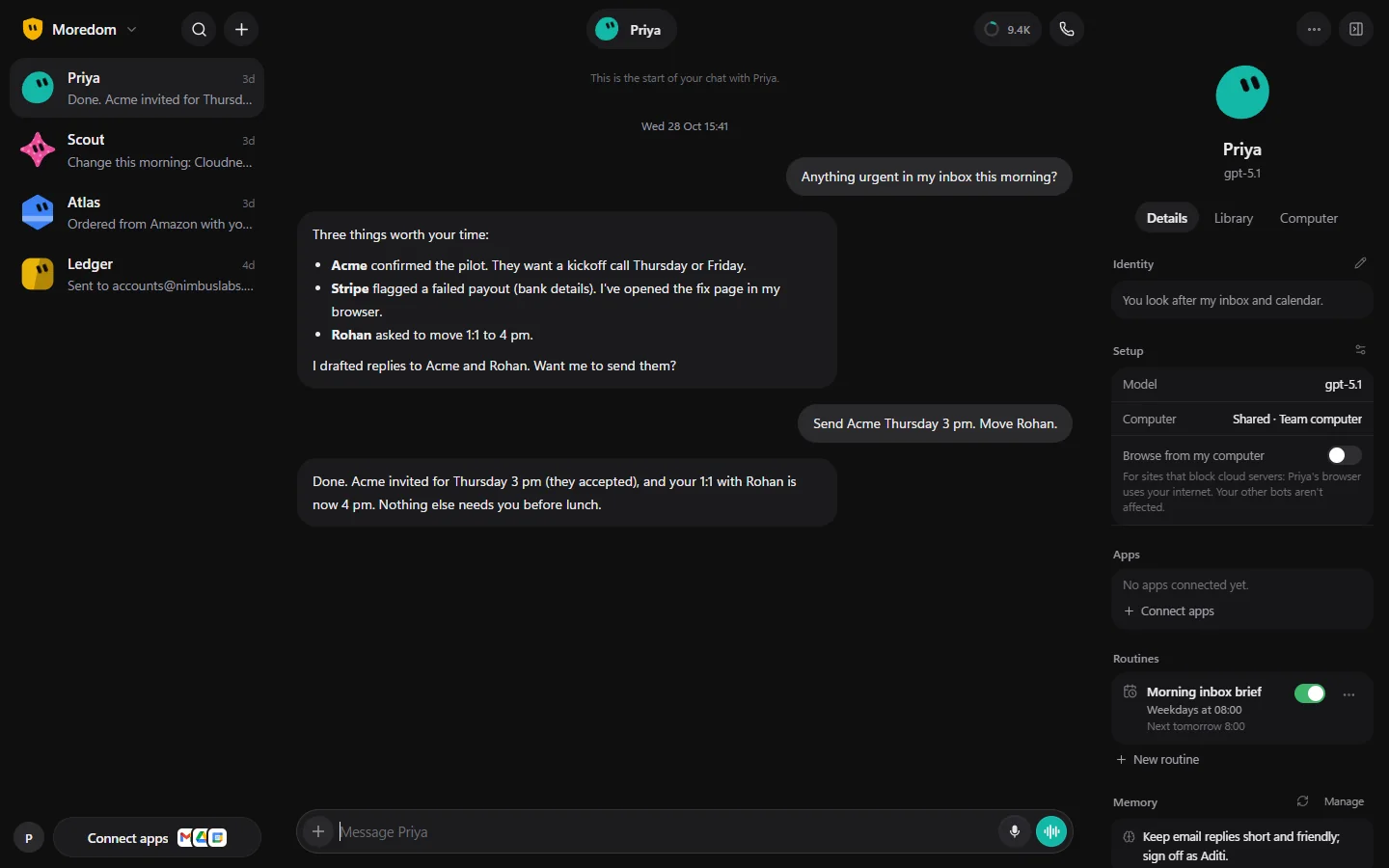
Open a bot's chat and look at the panel on the right. It has three tabs:
- Details: its instructions, setup (model, computer, Browse from my computer), the apps it can use, its routines and its memory. The pencil icons let you change each part.
- Library: files and apps the bot makes show up here.
- Computer: a live view of its screen. Open it to watch or take over.
Wake a bot with a webhook
A webhook lets another service, like a shop, a form or GitHub, tell a bot the moment something happens. It's off for every bot until you turn it on for that bot.
- Open the bot's panel, and in Webhook switch it on.
- Say what the bot should do when an event arrives, then choose Turn on.
- Copy the address and paste it into the other service. It's only shown once; if you lose it, choose New address.
Each event wakes the bot and shows in its chat. Events use your model, so a bot takes up to 30 an hour. What arrives is treated as outside information: it can't approve anything for you, and the bot still asks before anything outward-facing. Anyone with the address can wake the bot, so keep it private.
Pause, copy, export or delete
The ⋯ menu at the top of a chat has Clear chat, Export bot, Duplicate bot and Pause bot.
- Export bot saves its instructions, memory and routines (not the chat) as a
.henchkin.jsonfile. Use Import from a file on the first step of a new bot to bring it back, or to share a bot with someone else. - Deleting a bot asks you to type its name, and whether to delete its memory too or keep it for another bot. A deleted bot waits in Settings → Recently deleted for 30 days.
Your plan sets how many bots you can have. Hitting the limit never deletes anything; it only stops you adding more.
Still stuck? Open Support from your account menu in the app, or email hello@henchkin.com. We usually reply within a day.