HelpApps and logins
Connected apps
Connected apps let bots work in the tools you already use: read and draft email, update a spreadsheet, file a ticket. You choose which bots may use each one.
Connect an app
- Choose Connect apps at the bottom left (or Apps in your account menu).
- Find the app: search, or filter by Password Managers, Productivity, Communication, Developer, Business or Creative.
- Choose Connect or Add and follow its steps.
- Under Bots that can use it, pick All bots, everyone on a team computer, or only the bots you choose.
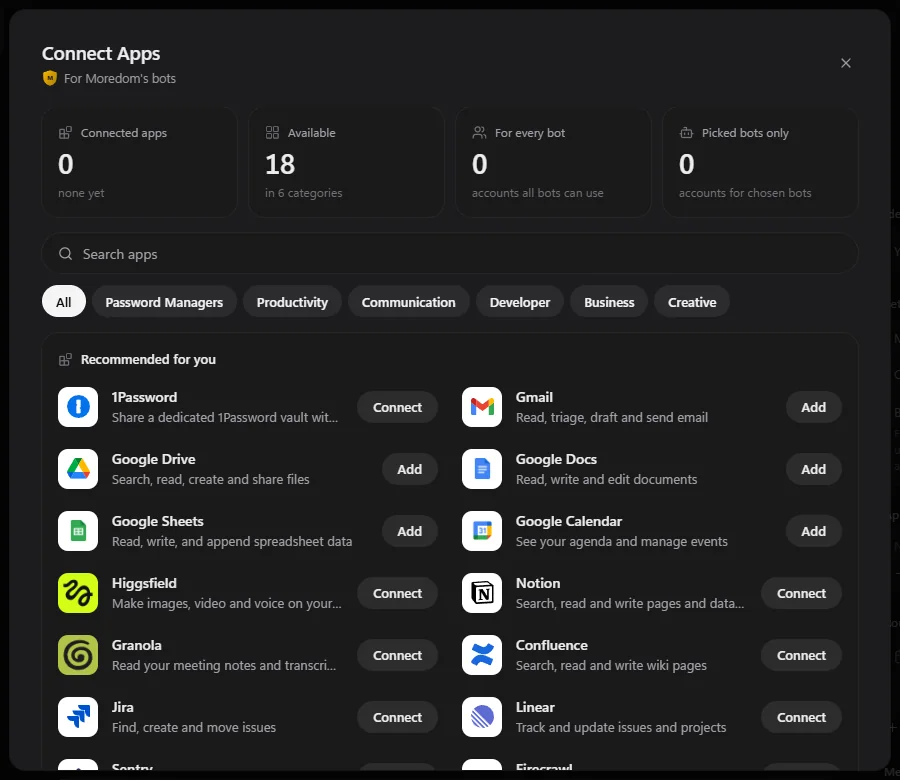
Available now: 1Password, Gmail, Google Drive, Docs, Sheets and Calendar, Notion, Granola, Confluence, Jira, Linear, Sentry, Firecrawl, Zendesk, Stripe, Shopify, Higgsfield, Canva and ElevenLabs.
Google: Gmail, Drive, Docs, Sheets and Calendar
- Choose any Google app and then Sign in with Google. Pick your account and allow access. Turn on Read-only first if bots should only look things up, never send, edit or delete.
- For Gmail, there's a second step: choose Allow Gmail (or Skip Gmail for now). Google may show a warning that "Henchkin Mail" isn't verified yet. To go ahead, choose Advanced, then Go to Henchkin Mail.
- Choose which Google apps bots may use with this account, and which bots.
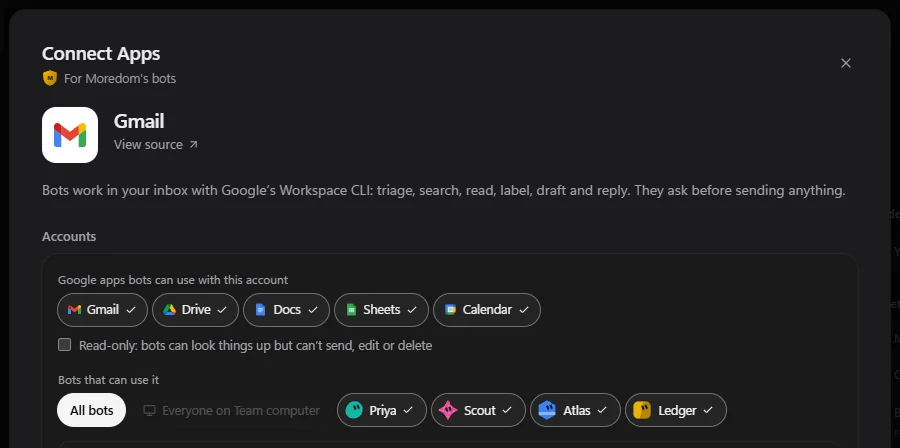
Bots can triage, search, read, label, draft and reply in Gmail. They always ask before sending.
Google Drive
Bots don't see your whole Drive. Choose Pick Drive files and select the files they may use. They also see files they create themselves.
1Password
Create a 1Password service account with access to a vault made just for your bots, copy its token (it starts with ops_), paste it, and choose Connect 1Password. Bots can then sign in with those logins, and pay with cards saved there, without ever seeing them. See Passwords.
Disconnect an app
Open the app in Connect apps and choose Disconnect. For apps connected with a token or key, also delete that token in the app itself. Disconnecting removes Henchkin's copy; deleting the token makes sure it can never be used.
Still stuck? Open Support from your account menu in the app, or email hello@henchkin.com. We usually reply within a day.