HelpYour bots
Chat with a bot
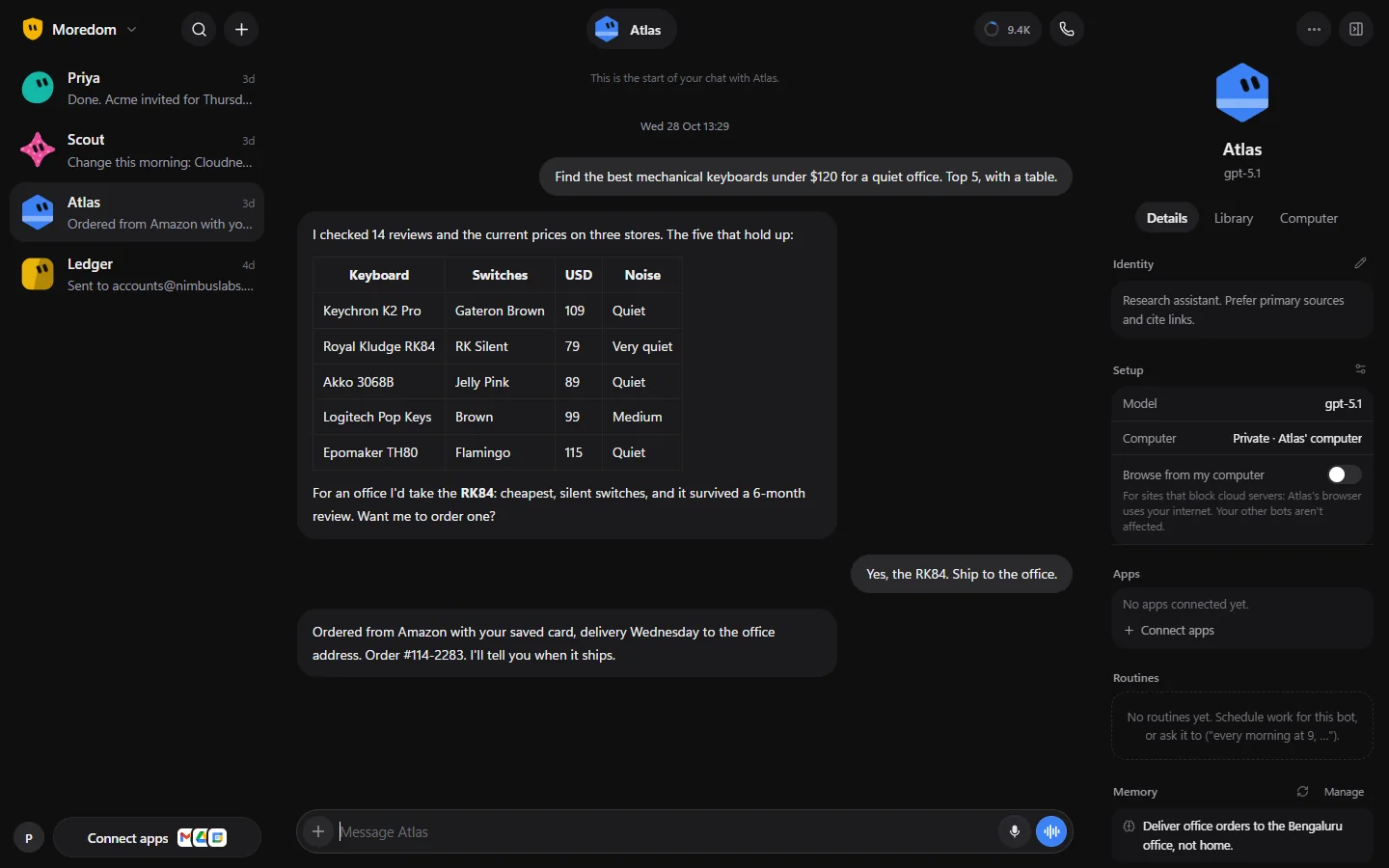
You work with a bot by chatting, as you would with a colleague. It tells you what it did, asks when it needs you, and waits for your OK before anything that matters.
Sending messages and files
- Type in the message box and press Enter.
- Choose + to attach files (up to 100 MB each), or drag them in or paste them. Files go onto the bot's computer, so this needs a bot with a computer.
- Choose the microphone to speak instead of typing. See Voice and calls.
- Hover over a message for Reply (quotes it), Copy message and Delete this exchange.
While a bot is working
- You can keep chatting. The bot reads your message and adjusts.
- Start a message with
/queueto have it wait until the bot is done. Queued messages have Send now and Remove. - Choose Stop in the message box to stop the bot straight away.
- A bot often replies with a 👍 to say it's on it.
Seeing every step
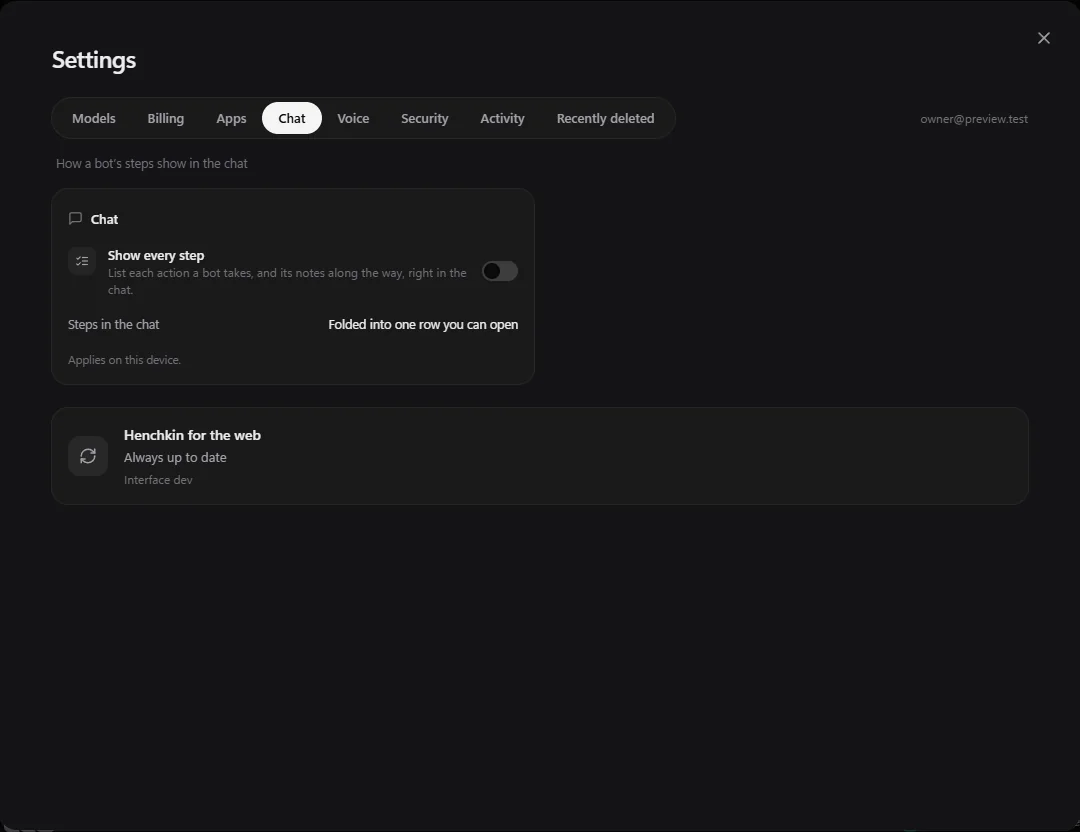
Normally the steps a bot takes (opening a page, running a command) are folded into one row you can open. To list every step in the chat instead, turn on Settings → Chat → Show every step. This applies only on the device you change it on.
Plans
For a bigger job, a bot may share a Plan: a short checklist with a progress bar that fills as it works. Some plans ask for your OK first: choose Approve to go ahead, or Suggest changes and say what you'd like different.
Questions and approvals
When a bot needs you, it asks with a question card. The options are lettered A, B, C. Choose one, or use Something else… to type your own answer.
- Approvals are questions with Approve and Deny. Bots ask before paying, sending messages for you, deleting or cancelling things, and anything that can't be undone.
- An approval covers only the one action you were shown, and runs out after 30 minutes (a card payment after 15).
- The answer has to come from you in the app. A bot can't approve its own request.
When a bot needs you
- An amber Needs you bar appears at the top of that bot's chat, with buttons to answer, or to Take over its screen (for example, to type a sign-in code).
- The bot shows an amber dot and "Needs you" in your bot list, and the company switcher gets a dot too.
- If you've asked a bot to call you ("call me when it's done"), every device you're signed in on rings. See Voice and calls.
Finding a bot
Choose the magnifier at the top left (or press Ctrl + K) to search your bots by name and by their latest message.
Still stuck? Open Support from your account menu in the app, or email hello@henchkin.com. We usually reply within a day.