HelpYour bots
Bot computers
Each computer is a private Linux machine on our servers with its own browser, terminal and files. Bots use them to do real work on the web. You can watch any time and take over when you need to.
Watch a bot work
Open a bot's chat and choose the Computer tab in the right panel for a live view of its screen. Choose the view to open it large. The full view has Browser, Terminal and Files at the bottom, and Expand or Dock next to chat to arrange it.
Take control
- Open the bot's screen and choose Take control. The bot pauses while you drive.
- Click and type as on your own computer: sign in to a site, solve a check, or fix something. Use Paste to paste text from your device.
- Choose Release to hand the screen back. The bot carries on from where you left it.
Every takeover is recorded in Settings → Activity.
Asleep and awake
A computer goes to sleep after 15 minutes with nothing to do, and wakes by itself when its bot needs it. A job still running on it, such as a video render, keeps it awake for up to 6 hours after the bot last worked on it. If you open one while it's asleep, choose Wake it. The first start can take up to a minute. Updates install by themselves while a computer is idle.
Files
The Files panel shows what's on the computer. You can make a New folder or New file, Upload files, and download, rename or delete any file. Deleted files wait in that panel's Recently deleted for 30 days, so you can restore them.
Team and private computers
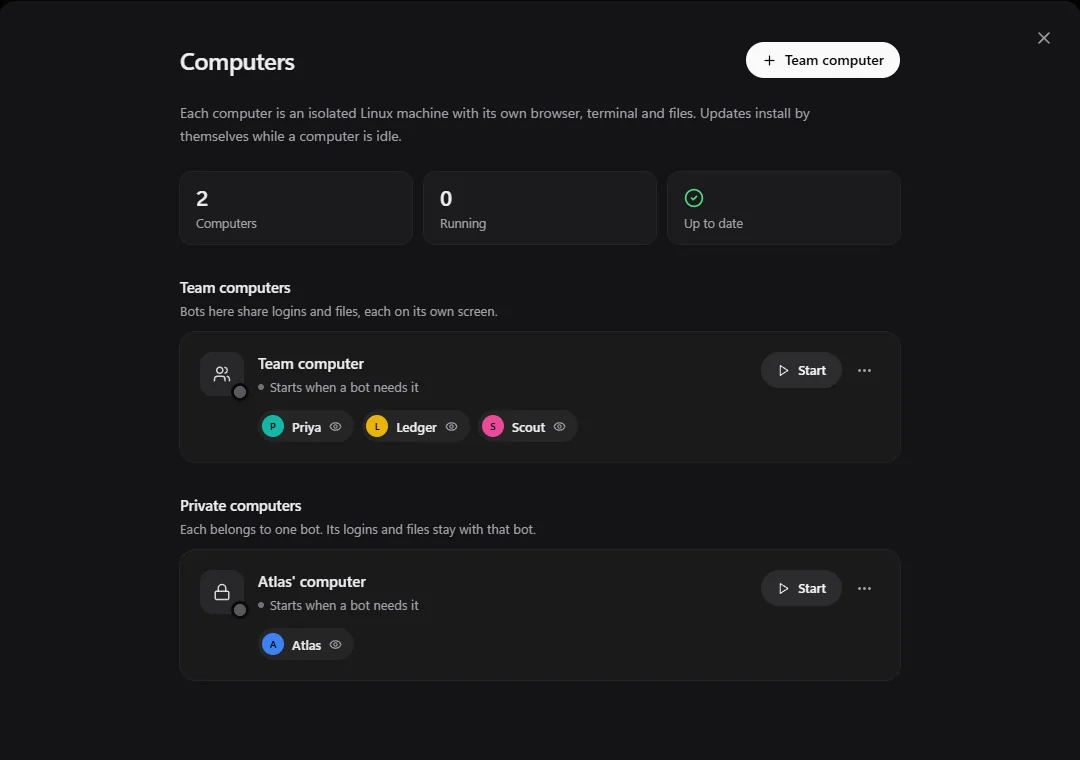
Open your account menu and choose Computers to see them all.
- Team computers: bots here share logins and files, each on its own screen. Good for bots that work on the same accounts.
- Private computers: each belongs to one bot. Its logins and files stay with that bot.
Choose Team computer to add another team computer. Each computer has Start / Stop, and the ⋯ menu has Update now and Reset (back to a clean machine). A deleted team computer waits in Recently deleted for 30 days.
Browse from my computer
Some sites block cloud servers. For those, turn on Browse from my computer in the bot's Details → Setup. That bot's browser then reaches the web through your own internet connection. Your other bots aren't affected.
- It needs the Henchkin desktop app open and signed in on that computer. The setting shows which device it's browsing from. If the app is closed, that bot's pages won't load until you open it again.
- It only carries ordinary web traffic to public websites. It can't reach your home network or other devices.
Limits
| Each computer | |
|---|---|
| Processor and memory | 2 CPUs and 2 GB of memory. When it's busy, it gets more while the machine has room: up to 4 GB of memory, and up to 4 CPUs for a few minutes an hour. |
| Disk | 20 GB. At 80% you get a warning; when it's full, uploads are refused, but nothing is deleted. |
| Internet use | 100 GB a month. If it runs out, the computer sleeps until the 1st of next month. |
How many computers you have depends on your plan, and you can add extras. See Plans and billing.
Still stuck? Open Support from your account menu in the app, or email hello@henchkin.com. We usually reply within a day.