HelpGetting started
Connect your AI
Every bot needs an AI model to think with. Your plan includes AI usage, so bots work from the start. You can also connect a model of your own, paid to its provider and never capped by Henchkin.
Included AI usage
You don't need an AI plan of your own. Every Henchkin plan includes a monthly allowance of AI on a top model Henchkin picks and keeps up to date: 10M tokens on Starter, 40M on Plus, 200M on Pro and 1B on Business. It shows as Henchkin Included Usage when you pick a bot's model, and Settings → Models shows how much is left and when it resets on the 1st.
When it runs out, bots on included AI stop and tell you, and you're never charged for going over. To have more, or to choose the model yourself, connect your own:
- A subscription plan. Get a plan from ChatGPT, Claude or Grok, then sign in with it. MiniMax, Kimi and Z.ai plans also work, with the key that comes with the plan. You pay that company for the plan, and your bots use its allowance.
- An API key. Make a key with a provider such as OpenAI, Google Gemini or DeepSeek. You pay that provider for what your bots use.
Your own connections don't use the included allowance, and Henchkin never caps them. Connect one as shown below, or while you make a bot.
Use a subscription you already pay for
If you pay for ChatGPT, Claude or Grok, your bots can use that plan with no API key. MiniMax, Kimi and Z.ai plans connect with the key that comes with the plan.
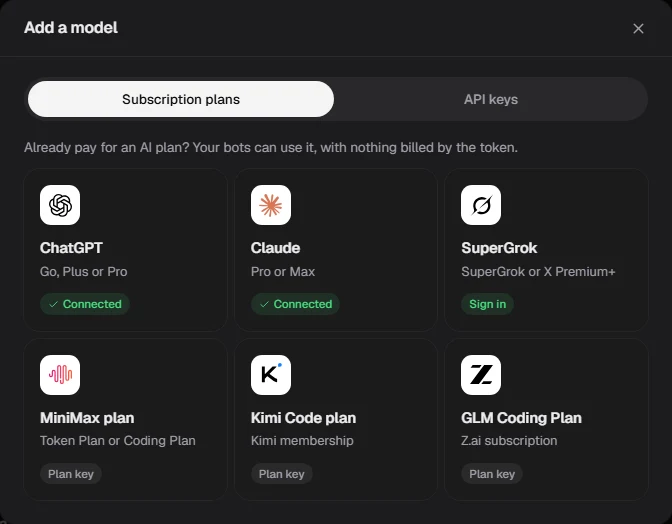
- Open Settings → Models and choose Add a model. With nothing connected yet, the choices are already on the page. You can also connect one while making a bot.
- Under Subscription plans, pick ChatGPT (Go, Plus or Pro), Claude (Pro or Max), SuperGrok (SuperGrok or X Premium+), MiniMax plan, Kimi Code plan or GLM Coding Plan.
- For ChatGPT, Claude and SuperGrok, sign in to that service in the window that opens and allow access. For the others, paste your plan's key.
Your bots' work then counts against that plan's usual limits, the same as if you were chatting there yourself.
Kimi and Z.ai made their plans for coding tools, and Z.ai's terms don't cover Henchkin, so bots may not work on them for long. Henchkin shows a warning before you connect one. If that matters to you, use an API key from them instead.
ChatGPT sign-in in a browser
OpenAI sends its sign-in back to your own computer. The desktop app catches that by itself. In a web browser, the tab may end on a page that "can't connect". That's expected: copy that page's address, come back to Henchkin, and it picks the address up from your clipboard (or paste it into the box).
Use an API key
On the API keys tab of Add a model, pick your provider (Claude, OpenAI, Google Gemini, xAI Grok, DeepSeek, Kimi, Qwen, Mistral, OpenRouter, Groq and more), paste the key, and save. Choose Custom endpoint for any other service that works like OpenAI's API.
Keys are stored encrypted on our server. Your devices never receive them, and bots never see them.
Check usage
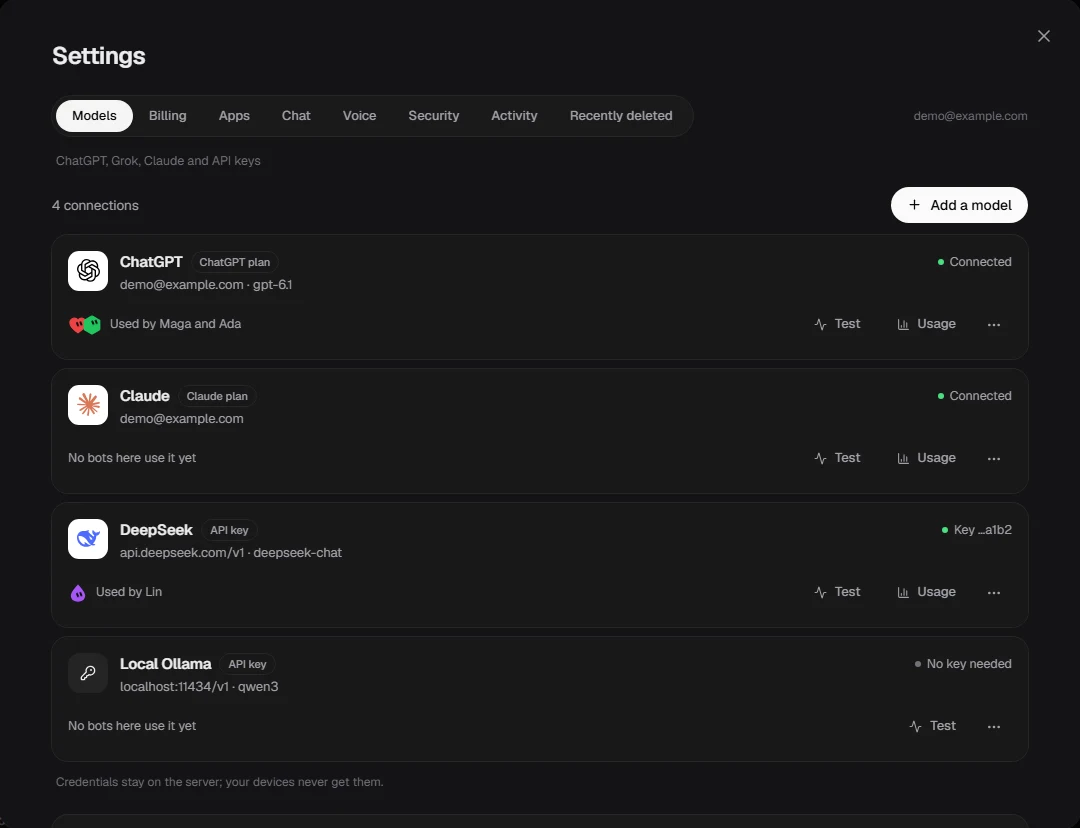
Each connection on the Models tab shows whether it's working and which bots use it. Choose Test to check it answers, and Usage to see the tokens your bots used in the last 24 hours, 7 days and all time, plus any rate limits your provider reports. A connection that needs signing in again moves to the top with a Sign in again button.
Choose a model for each bot
Each bot has its own Model provider and Model, set when you make it or later from its Details panel under Setup. A quick bot for email might use a fast, cheap model; a research bot a stronger one.
Backup model
Turn on Backup model on a bot and pick a second model. When the main one hits its usage limit, the backup takes over from where it was, and the bot switches back once the limit resets. Its chat and memory stay the same.
If a bot says it can't reach its model
- Open Settings → Models; the link in the bot's message goes straight there. A connection marked as signed out needs Sign in again.
- If you've used up your plan's allowance, wait for it to reset, or add a backup model.
- For an API key, check it still exists in your provider's dashboard and has credit.
Still stuck? Open Support from your account menu in the app, or email hello@henchkin.com. We usually reply within a day.